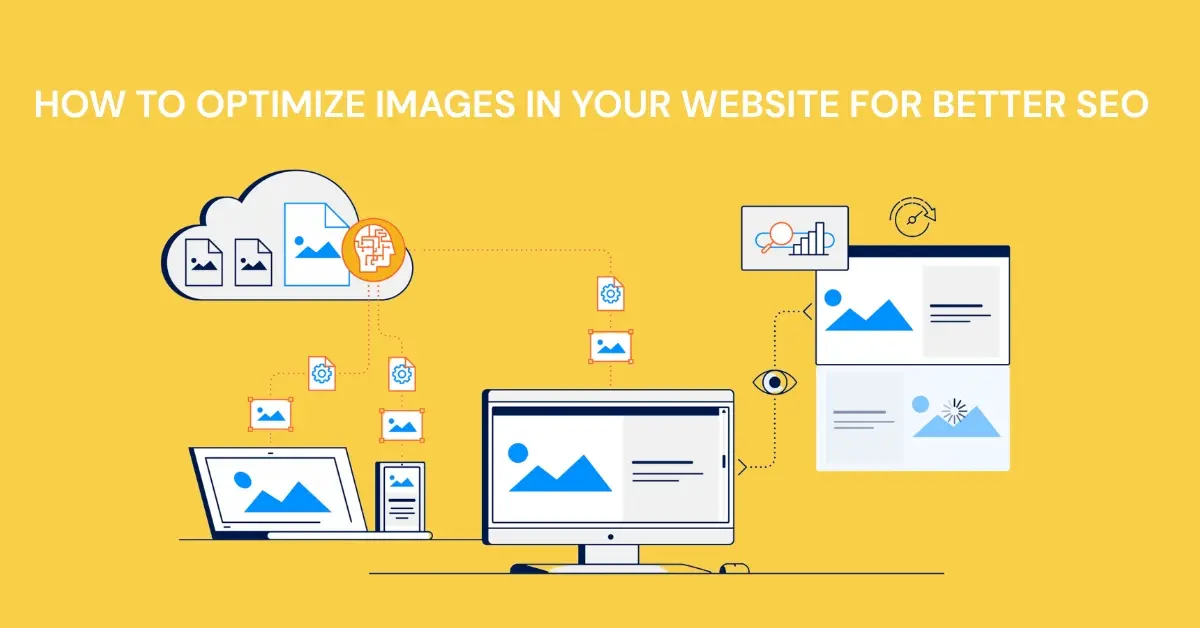
Images play a huge role in how users experience your website. They make your content more engaging, improve readability and help tell your story visually.
But if your images aren’t properly optimized, they can slow down your site, hurt your rankings, and negatively impact the user experience.
Image SEO is more than just reducing file size – it involves a combination of technical improvements, thoughtful naming, accessibility practices, and strategic placement.
In this guide, you’ll learn how to optimize images for SEO in a way that looks natural, effective, and easy to maintain.

Why Image SEO Important for Your Website
Search engines can’t “see” images the way humans do. They rely on text, structure, and metadata to understand what an image represents. When you optimize your images:
- Your website loads faster, which directly boosts rankings.
- Google can properly index and rank your images in Google Images.
- You improve accessibility for visually-impaired users.
- You give search engines more context about your page content.
- Your site’s bounce rate decreases as users enjoy smoother performance.
How to Optimize Images
Choose the Right Image Format
Choosing the right image format is the foundation of effective image SEO. Each format is designed for a specific purpose, and using the wrong format can result in poor quality visuals, unnecessarily large file sizes, and slow website performance.
When you understand how each format works, you can make better decisions that improve both your site speed and user experience.

JPEG (JPG)
JPEG is one of the most used image formats on the Web – and for good reason. It’s ideal for photographs, images with lots of colors, and scenes with gradients or landscapes.
The main advantage of JPEG is the ability to significantly compress images while maintaining good visual quality.
This means you can upload high-resolution photos of products, landscapes, people, or events without worrying too much about large file sizes slowing down your site.
JPEG supports millions of colors, making it suitable for detailed imagery. However, it doesn’t support transparency, so avoid using it for logos or icons.
PNG
PNG is the format you can choose when you need clear details or transparency. It works best for graphics, illustrations, logos, icons, and images with sharp edges or text overlays. Unlike JPEG, PNG uses lossless compression, meaning it retains all the original image data without compromising quality.
PNG files are quite large. While this makes them great for high quality graphics, using PNG for large images will slow down your page.
Use PNG wisely—reserve it for images that require absolute clarity or transparent backgrounds.
WebP
WebP has become the modern favorite for web optimization. Developed by Google, WebP offers a powerful combination: high quality images with dramatically smaller file sizes.
It supports both lossy and lossless compression, as well as transparency – making it a flexible alternative to JPEG and PNG.
WebP images often load much faster, helping to reduce bounce rates and improve core web vitals. Because of these benefits, many websites are converting all of their images to WebP to get a noticeable performance boost.
SVG
SVG (Scalable Vector Graphics) is ideal for icons, logos, simple illustrations, and interface elements. Unlike pixel-based images, SVGs scale infinitely without losing quality. This makes them perfect for responsive website designs, where images need to adapt to different screen sizes.
SVG files are extremely lightweight, often just a few kilobytes, and they render beautifully on all devices. They can also be styled or animated using CSS, giving designers more control.
Pro Tip
To achieve the best balance between quality and speed:
- Use JPEG or WebP for large photos, banners, and blog images.
- Use PNG for graphics that require transparency or high detail.
- Use SVG for logos, icons, and vector-based illustrations.
Choosing the right format from the beginning ensures your images look sharp, load faster, and contribute positively to your overall SEO strategy.
Compress Images Without Losing Quality
Large, unoptimized images are one of the most common causes of websites becoming slow and unresponsive. When an image is too heavy, your page takes longer to load, which not only frustrates visitors but also hurts your search engine rankings.

Google prioritizes fast-loading websites, so reducing image size is a simple but highly effective way to improve overall performance.
Image compression is the process of reducing the file size of an image while keeping it clear to the human eye. The goal is to strike the right balance – preserving quality but removing unnecessary data that weighs down the file.
Modern compression tools are smart enough to detect parts of the image that can be safely reduced without affecting the final format.
Free Tools for Image Compression
You don’t need advanced software or expensive tools to compress your images. Several easy-to-use platforms can do the job for you within seconds:
- TinyPNG – Great for PNG and JPEG files. It uses smart lossy compression that keeps images looking sharp.
- ImageOptim – Popular for Mac users, offering high-quality compression without removing essential details.
- ShortPixel – Provides strong compression options, including WebP conversion for even lighter results.
- Compressor.io – Supports multiple formats and is ideal for fast, straightforward compression.
If you’re working on a WordPress website, plugins are available that can automate compression each time you upload images:
- Smush – An easy-to-use plugin that compresses and lazy loads your images.
- Imagify – Offers higher compression rates and includes WebP support for better performance.
These tools help ensure your images remain clear, crisp, and vibrant while significantly reducing their file size.
What to Aim For
The key to effective compression is reducing file size without making the image blurry, dull, or pixelated. If you over-compress, the image may lose important detail or look grainy—something you want to avoid.

As a general guideline:
- Try to keep most images under 150 KB, especially those used within blog content.
- Large banner images may need slightly higher limits, but compress them as much as possible without affecting visual quality.
- If your site uses WebP, you can achieve even smaller sizes with excellent clarity.
By consistently compressing your images before uploading them, you’ll see faster loading times, higher user engagement, and stronger SEO performance.
Resize Images for the Web
Uploading massive images straight from a smartphone or camera is a common mistake.

If your content area is only 1200px wide, there’s no reason to upload a 5000px image.
Resize images to fit your design layout:
- Blog featured images: 1200px – 1600px wide
- Inline content images: 700px – 1200px wide
- Thumbnails: 150px – 300px
Proper resizing instantly improves load time.
You can compress images, resize , and convert to webp format by using free tools : https://bulkresizephotos.com/
Use Descriptive File Names
Instead of:
- IMG_5372.jpg
- photo123.png
Use meaningful file names like:
- best-coffee-shops-london.jpg
- digital-marketing-statistics-2024.png
Search engines read file names to understand image content. Use hyphens instead of underscores, and keep it simple, relevant, and keyword-friendly.
Write Effective Alt Text
Alt text – short for alternative text – is one of the most important but often overlooked parts of image SEO. Since search engines can’t “see” images like humans can, they rely on alt text to understand what the image represents.

Alt text also plays an important role in accessibility, allowing screen readers to describe visuals to visually impaired users.
Writing effective alt text isn’t just about inserting keywords. It’s about creating a clear, meaningful description that provides context and helps both users and search engines interpret the image accurately.
What Makes Good Alt Text?
To write strong alt text, keep the following principles in mind:
- Describe what’s in the image
Focus on the essential elements. What would someone need to know if they could not see the picture? - Use natural, simple language
Alt text should read like a short, clear sentence—not a list of keywords or broken phrases. - Include keywords only when they fit naturally
Avoid keyword stuffing. If the keyword genuinely matches the image, include it. If not, leave it out.
Examples of Good vs Bad Alt Text
- Bad: “coffee image”
This doesn’t explain what the image shows and looks like keyword-stuffing. - Good: “Barista pouring latte art into a ceramic mug at a London café.”
This is descriptive, natural, and gives context that search engines can understand.
Effective alt text should guide, not confuse. It should add value by clearly communicating the content and purpose of the image. When done well, it improves accessibility, enhances user experience, and supports your page’s overall SEO strategy.
Add Captions Where Appropriate
Captions appear directly below images, and users actually read them more often than normal text.
When your image adds context or supports a point, include a short caption. It increases engagement and improves user understanding.
Use Image Sitemaps
If your site uses lots of images—like an eCommerce store or photography portfolio—an image sitemap helps Google discover them.
Most SEO plugins like Yoast or Rank Math create image sitemaps automatically.
This makes it easier for your images to appear in Google Image search results.
Implement Lazy Loading
Lazy loading is one of the simplest yet most effective ways to improve your website performance. Instead of forcing every image on the page to load the moment someone lands on it, lazy loading delays the loading of images until the user actually scrolls down to where the images appear.

This means that the browser only loads what is immediately visible, making your page feel faster and more responsive.
Why Lazy Loading Matters
When a webpage loads, browsers traditionally try to download all images at once, even if some of them sit far below the fold. This increases the initial loading time and can frustrate users—especially those on slower networks or mobile devices.
Lazy loading helps solve this by:
- Reducing the amount of data loaded at the start
- Minimizing unnecessary server requests
- Improving Core Web Vitals, especially Largest Contentful Paint (LCP)
- Keeping pages lightweight and fast
The result is a smoother browsing experience that keeps visitors engaged and reduces bounce rates.
Lazy Loading in WordPress
The good news is that WordPress already includes built-in lazy loading for images. This means that most modern themes automatically apply this feature without you needing to do anything extra.
However, if you want more control or want to strengthen the effect—especially for heavy pages—you can enhance lazy loading using specialized plugins such as:
- LazyLoad by WP Rocket – A reliable tool that applies lazy loading to images, iframes, and videos.
- a3 Lazy Load – A simple, user-friendly plugin designed specifically for mobile optimization.
These plugins add additional customization options, allow lazy loading for different media types, and ensure that the feature works consistently across all areas of your site.
By implementing lazy loading, you dramatically improve your initial load speed, enhance user experience, and optimize your website for better SEO performance—all without compromising image quality.
Maintain Consistent Image Style
Image SEO also involves user experience. A consistent visual style helps your content feel professional and polished.
Consider:
- Using the same aspect ratios
- Keeping a uniform color tone
- Maintaining consistent illustration or photography style
It helps brand recognition and improves readability.
Use a Content Delivery Network (CDN)
A content delivery network, commonly known as a CDN, is one of the most powerful tools you can use to speed up your website and improve the loading speed of your images.

Instead of having all your images delivered from a single server located in one part of the world, a CDN stores copies of your images on multiple servers distributed globally. These are often called “edge servers”.
How a CDN Improves Image Load Speed
When a visitor opens your website, the CDN delivers images from the server closest to their location. For example:
- A user in the UK gets images from a UK-based CDN server.
- A user in India receives the same images from a server in Asia.
- A user in the USA loads them from a nearby North American server.
Because the distance between the user and the server is shorter, the images load much faster. This is especially beneficial for websites with international audiences, large photo galleries, or eCommerce product pages.
Why a CDN Helps SEO
Faster load times are directly linked to better user experience—something search engines care about deeply. A CDN improves:
- Page speed
- Core Web Vitals
- Global performance consistency
- Reduced latency and bandwidth usage
All of these factors contribute to stronger SEO rankings and happier visitors.
Popular CDN Options
Some of the most widely used CDNs include:
- Cloudflare – Offers both free and premium plans, and is easy to integrate with most websites.
- BunnyCDN – Known for excellent performance and very affordable pricing.
- KeyCDN – Simple setup and strong global coverage.
- Amazon CloudFront – Enterprise-level CDN backed by Amazon Web Services.
These services work behind the scenes to ensure your images load quickly no matter where your visitors are located.
CDN Integration for WordPress
If you’re using WordPress, integrating a CDN is even easier. Many caching and performance optimization plugins offer built-in CDN support, allowing you to activate it with just a few clicks. Plugins like:
- WP Rocket
- W3 Total Cache
- LiteSpeed Cache
make CDN setup smooth and straightforward, even for beginners.
By using a CDN, you ensure your images and static files load at lightning speed across the globe, which boosts user satisfaction and strengthens your website’s SEO performance.
Summary:
Image SEO is an important part of optimizing your website for speed, search ranking, and user experience.
By choosing the right format, compressing images, writing effective alt text, and increasing performance through lazy loading and CDNs, you create a smoother, more search-friendly site.

Remember: Great content deserves great visuals—but only if those visuals are optimized.
If you follow these steps consistently, you’ll see faster page loads, better rankings, and a more pleasant browsing experience for your visitors.